Lesson slides you can project
TeachRoster builds a slide deck from a topic you describe — or from the quiz you already wrote, reusing the same topic so you do not describe the lesson twice — and projects it straight from the browser with arrow keys, keeping your presenter notes on the screen only until you press N to hide them.
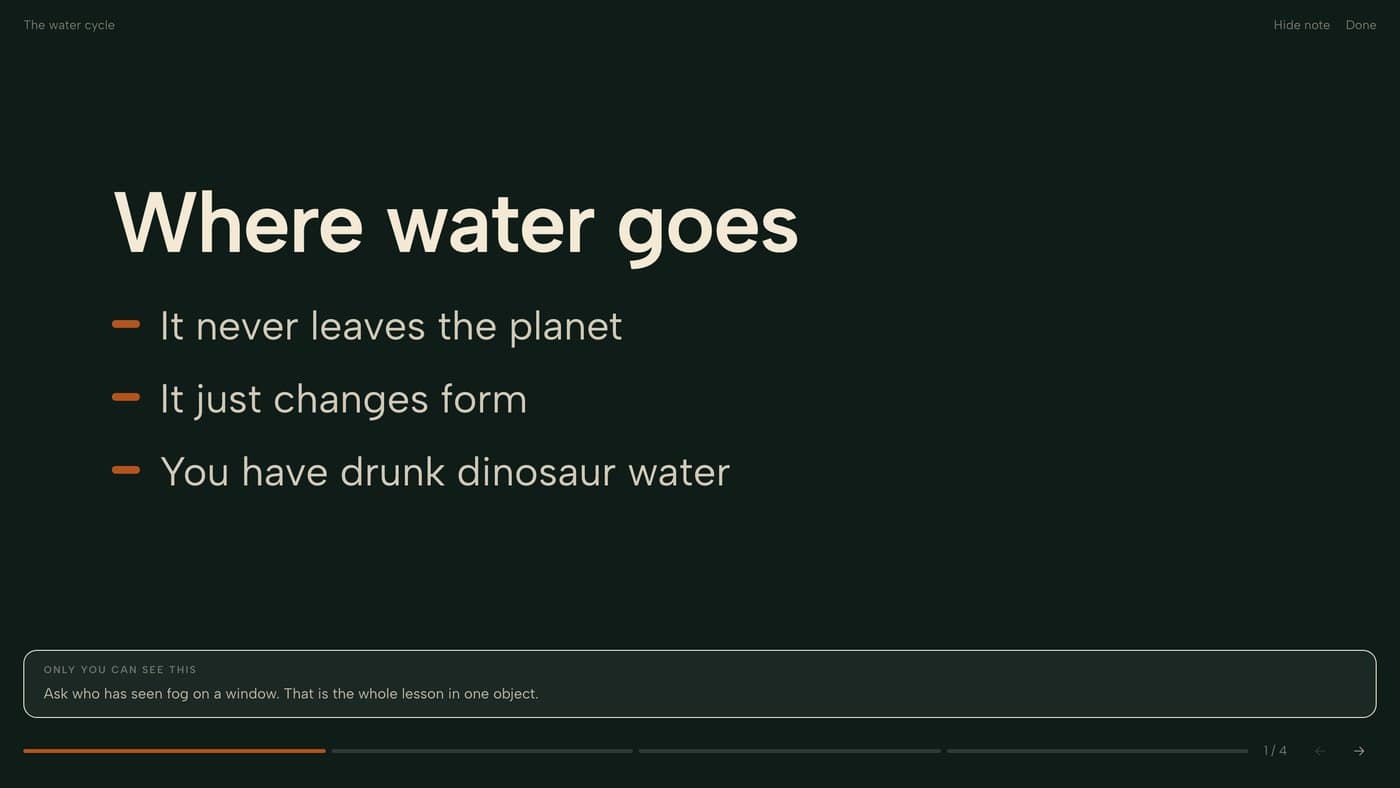
Rebuilding the same deck every year is one of the quieter costs of teaching. The lesson has not changed; the file is on a laptop that has.
TeachRoster builds the deck from a topic and keeps it in your Library, so next year it is already there. Each slide is a heading and two to four short lines — the wall is a prompt, not the lesson.
Under each slide there is a note for what you will say. It is not the same words as the bullets — the class reads the wall, you read the note.
How it works
- 1
Describe the lesson, or start from your quiz
Give a topic and how many slides you want. If you have already written a quiz on it, press Make slides and TeachRoster reuses the topic that quiz came from.
- 2
Cut it down
It arrives as a draft. The editor counts your bullets and warns you past four, because a slide that full stops being read.
- 3
Press Present
Full screen, arrow keys or space, and tap targets across the whole screen for when you are standing at the board. Press N to hide your notes.
What it does today
- A deck is built from a topic, or from the quiz you already wrote on that topic.
- Presenting runs in the browser — no export, no file, nothing to install.
- Arrow keys, space, Home and End, so a clicker works.
- Each slide can carry a presenter note, hidden with the N key.
- Type scales with the screen so it reads from the back of a classroom.
- The deck stays in your Library beside the quiz and notes on the same topic.
- Slides are for teaching from — they are not given to students or graded.
What it will not do
Worth knowing before you build a term around it.
- Text only — no images, charts, video or animation on a slide.
- There is no export. The deck lives in TeachRoster and presents from the browser; you cannot download a PowerPoint or PDF.
- No speaker-view second screen. Notes appear on the same screen you are projecting, which is why the N key hides them.
- No themes or templates — every deck uses the same typographic treatment.
- Students never receive the deck. It is for teaching from, not for reading later.
- No collaborative editing; a deck belongs to the teacher who made it.
Common questions
Can I make slides from a quiz I already made?
Yes. Open the quiz and press Make slides. If the quiz was generated from a topic, the deck is built from that same topic, so you do not describe the lesson a second time. If you typed the quiz by hand, the questions themselves become the brief.
Do I need PowerPoint or Google Slides?
No. The deck is presented from the browser. There is no export step and no file to lose — press Present and it goes full screen.
How do I move between slides while teaching?
Arrow keys, space, Home and End, so a presentation clicker works. You can also tap: the left quarter of the screen goes back and the right three-quarters goes forward, which is easier than aiming at a button while standing at the board.
Can I keep notes for myself on each slide?
Yes. Each slide can carry a note for what you will say, shown along the bottom while presenting and hidden with the N key. Be aware that if your laptop mirrors to the projector, the class sees whatever your screen shows — which is exactly why the hide key exists.
Do students see the slides?
Not today. Slides are for teaching from. If you want students to have something to read on their own, lesson notes are the feature for that.
Can I reuse the deck next year?
Yes. It stays in your Library with the quiz and the notes on the same topic, so next year is an edit rather than a rebuild.
Keep reading
Start with your own class.
Free for teachers. Sign in with Google, paste your roster, and read out a code — your students never make an account.