Auto grading for teachers
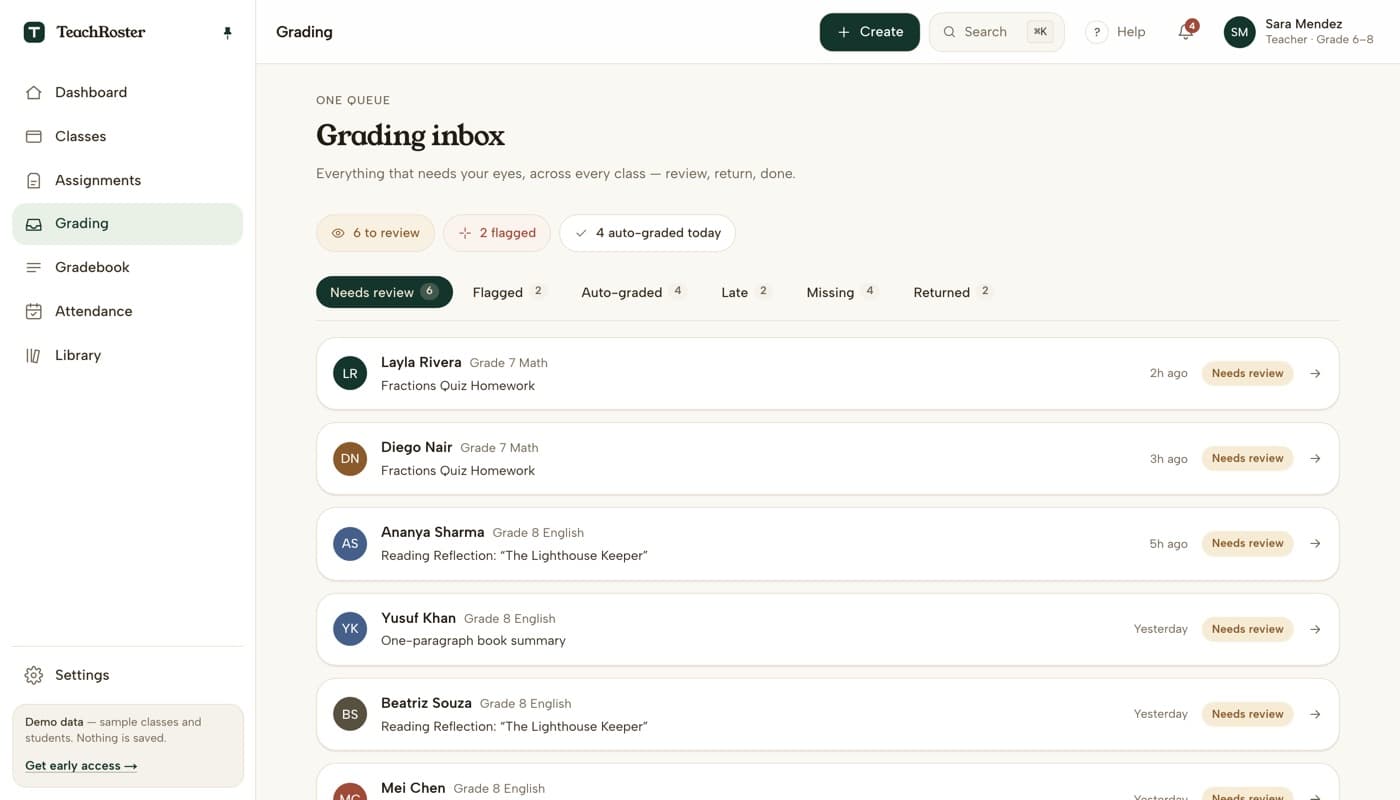
TeachRoster grades multiple choice and true/false the moment a student submits, and gives every short answer a suggested score with a confidence level and a one-line reason — which you accept, change, or reject in a single queue. The suggestion is never the mark: nothing reaches a student until a teacher presses a number.
Auto-grading tools usually fail in one of two directions. Either they only handle multiple choice, which is the part that was never really the problem, or they quietly assign grades to written work and hope nobody checks.
TeachRoster splits the job honestly. Anything with one correct answer — multiple choice, true/false — is scored the instant a student submits, because a machine is genuinely better at that than a tired human at 9pm. Anything requiring judgement goes to a review queue with a suggestion attached: a proposed score, how confident the model is, and why it landed there.
You stay the one who decides. Accept a suggestion in one tap, override the score, or rewrite the feedback entirely. Nothing goes back to a student until you return it.
How it works
- 1
Objective questions score themselves
The moment a student submits, multiple choice and true/false are marked. No queue, no waiting, no action from you.
- 2
Short answers arrive with a suggestion
Each one shows the question, the student's answer, a suggested score, a confidence level and a short reason. Accept it, change the number, or write your own feedback.
- 3
Return the whole set at once
When the queue is clear, return everything in one action. Students see their score and your feedback together, not a trickle.
What it does today
- Auto-graded on submit: multiple choice and true/false.
- Teacher-reviewed with an AI suggestion: short answers and longer writing.
- Every suggestion carries a confidence level, so low-confidence work is obvious.
- A blank, an ambiguous answer or one written in another language is marked "not sure" rather than guessed at.
- One queue across all your classes, filtered by needs review, flagged, late, missing and returned.
- Nothing is returned to a student until you press return.
Common questions
Does the AI decide my students' grades?
No. It grades objective questions, where the answer is either right or wrong, and for written answers it only suggests. A suggested score becomes a real score when you accept it. You can override every one.
What is the confidence level for?
It tells you how sure the model is about a suggestion, so you know where to actually look. High-confidence scores on straightforward answers can be accepted in a batch; low-confidence ones are worth reading properly, and they are flagged separately.
Can it grade handwriting or photos of written work?
Not today. Students answer in the browser, so grading works on typed submissions. Reading photographed handwritten work is on the roadmap and is not shipped.
Will students see AI-written feedback?
Only feedback you have approved. The suggestion is a draft in your queue; you can edit the wording or replace it entirely before returning it, and nothing leaves the queue on its own.
Is student work used to train AI models?
No. Student submissions are not sold, not used for advertising, and not used to train public AI models. The privacy page states this in plain language.
What happens to missing and late work?
Both get their own tab in the same queue, so chasing them is part of the same pass rather than a separate spreadsheet.
Keep reading
Start with your own class.
Free for teachers. Sign in with Google, paste your roster, and read out a code — your students never make an account.