Lesson notes in the language your student reads
TeachRoster writes lesson notes from a topic you describe and lets you set the language of the notes independently of the language the class is taught in — so a teacher working in English can hand Spanish notes to the three students who need them — and every section stays editable before any student sees it.
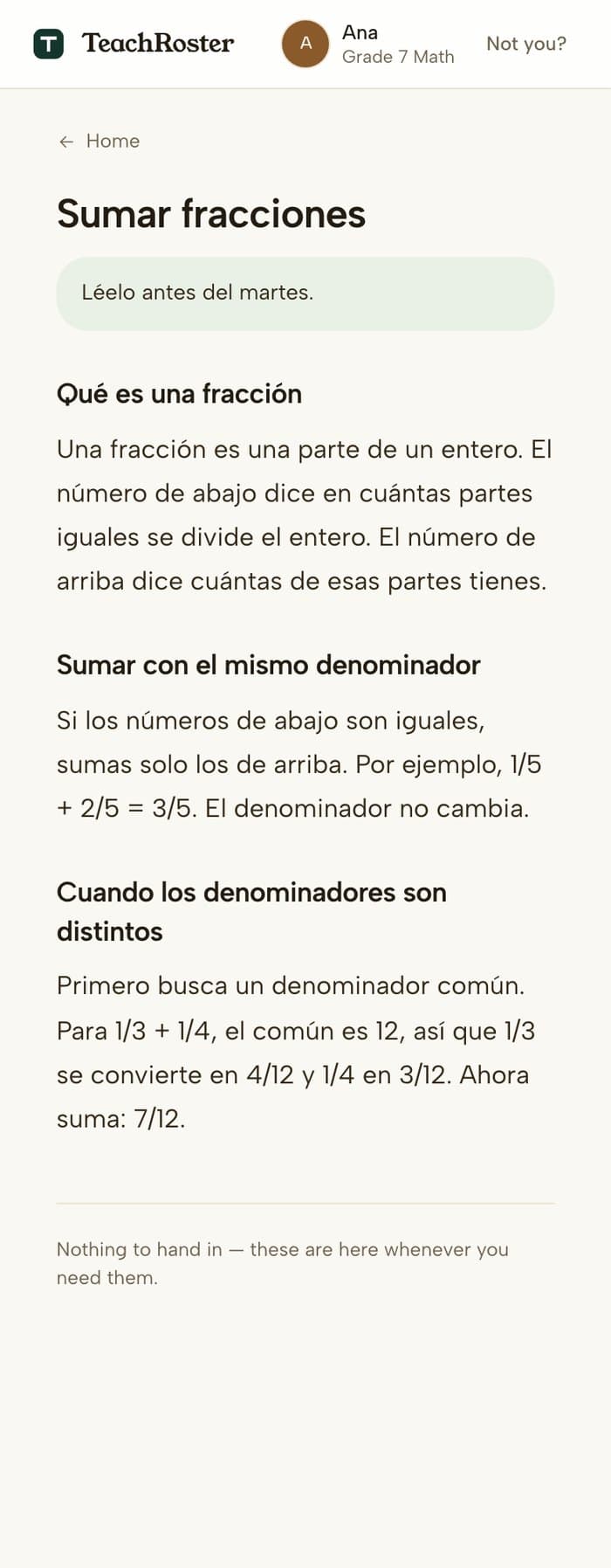
Someone who missed Tuesday needs what you said on Tuesday. Someone who was there but did not follow it needs the same thing, in words they can read alone at home.
TeachRoster writes that from a topic you describe: short sections with headings a student can scan, written to the student rather than about them, with worked examples that use real numbers. You read it, change what is wrong, and save.
The language is the feature. It is the reader's language, not the class's — which is the difference between notes that help a newly arrived student and notes they cannot use.
How it works
- 1
Describe it, or start from a quiz
A topic and, if you want, the grade and the language — 'the steps for long division, in Spanish, for the ones who miss a lesson'. Or open a quiz you already made and press Make notes: it remembers what the material covered, so you do not describe it twice.
- 2
Read it and change it
It arrives as a draft with headings and short sections. Edit anything, reorder, delete what you would not say. It is yours before it is anyone's.
- 3
Share it with the class
Students open it on a phone. There is nothing to submit and no mark — the notes stay available whenever they need them.
What it does today
- Written from your own notes or a PDF, a topic you describe, or a quiz you already made — then edited by you.
- The language of the notes is set per set of notes, not per class.
- Sections have headings so a student can scan for the bit they need.
- Written to the student — 'you divide', not 'students divide'.
- Nothing is graded and there is nothing to hand in.
- They sit in the Library beside the quiz on the same topic, and can be shared with any class.
- A student reads them in a phone browser with no account and no app.
What it will not do
Worth knowing before you build a term around it.
- Text only — no images, diagrams or equations beyond what you can type.
- The app's own buttons and labels stay in English even when the notes are in another language.
- There is no read receipt — you cannot see which students opened them.
- Nothing is graded and there is no comprehension check attached.
- Translation is generation, not a translation memory: writing the same notes in two languages produces two separate sets.
Common questions
Can TeachRoster write lesson notes in Spanish or another language?
Yes. The language is set on the notes themselves rather than on the class, so a teacher who teaches in English can write Spanish notes for the students who need them. Headings and body are both written in the language you choose.
Can it write lesson notes from notes or a PDF I already have?
Yes. Upload the PDF, the Word file or a photo of the page and the notes are written from what is on it — its definitions, its worked examples — rather than from general knowledge about the topic. The file is kept for thirty days, so the same upload also makes a quiz, a flashcard deck and a slide deck without uploading it again.
Do students need an account to read the notes?
No. Students join a class with a code you read out and a four-digit PIN. The notes open in a phone browser — no email address, no app.
Are the notes graded, or do students hand anything in?
Neither. Notes are reading material. There is no mark and nothing to submit, and they stay on the student's home screen rather than disappearing once opened.
Does AI send the notes to students automatically?
No. Generated notes arrive as a draft that only you can see. They reach a class when you have read them and pressed save — the same rule as quizzes.
Can I write the notes myself instead?
Yes. The editor is headings and plain prose with no formatting toolbar, and it works whether or not you used AI to start.
How is this different from just sending a document?
The notes live beside the quiz and the flashcards on the same topic, students reach them with the class code they already have, and they open on a phone without a download.
Keep reading
Start with your own class.
Free for teachers. Sign in with Google, paste your roster, and read out a code — your students never make an account.